Inside Keebo’s Five-Layer Warehouse Performance Protection

Every warehouse configuration optimization carries a performance risk. Shrink a warehouse and a query might queue. Suspend it sooner and the next user waits on a cold start. Cap a multi-cluster and a Monday morning dashboard refresh backs up.
That risk is the reason most Snowflake optimization stalls. Teams find the savings, model the savings, and then never ship them. Nobody wants to be the person who broke the executive dashboard to save four hundred dollars a month.
Keebo takes the risk off the table. Keebo Warehouse Optimization runs five independent layers of performance protection, and each one is yours to configure. You decide how aggressive the system gets, what counts as a slowdown, and what happens when one occurs.
Here is how each layer works, and how to tune it.
Table of Contents
- Layer 1: Fine-Grained per-Warehouse Controls
- Layer 2: Optimization Aggressiveness Sliders
- Layer 3: Performance Guardrails
- Layer 4: Custom Schedules and Rules
- Layer 5: Change Detection
- Why Layers Instead of a Single Setting
- Improving Performance: Condition-Based Upsizing
- Cost and Performance Are One Problem
- Data Warehouse Performance FAQs
Layer 1: Fine-Grained per-Warehouse Controls
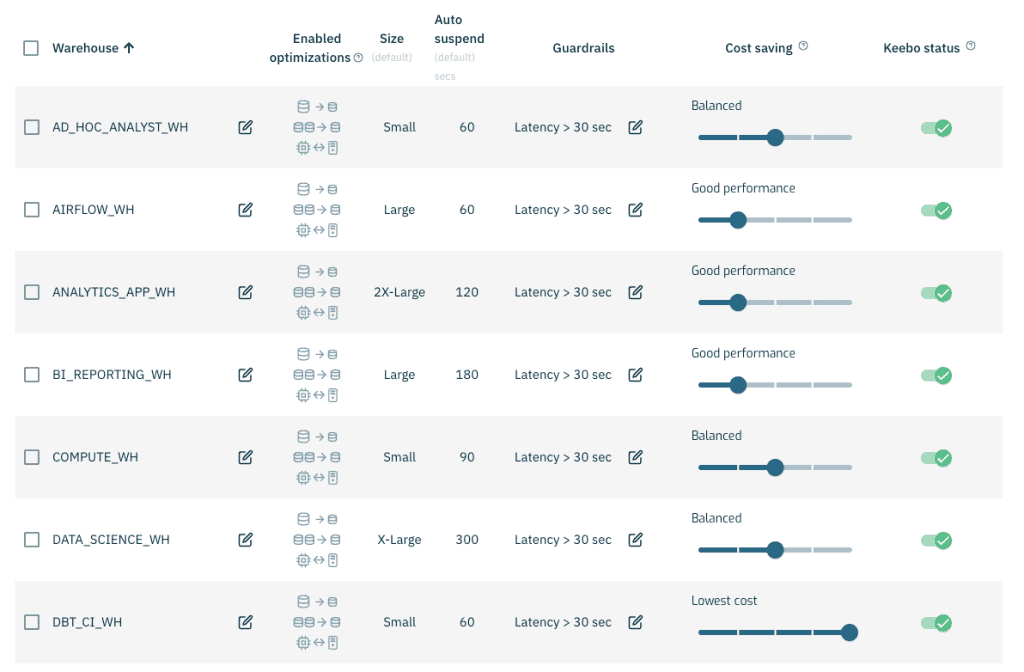
The first layer decides which optimizations run at all, warehouse by warehouse.
You choose the algorithms enabled on each one:
- Rightsizing
- Memory optimization
- Multi-cluster optimization
- Proactive suspension
Toggles take effect immediately. Nothing waits for a cycle.
This is the strongest lever in the platform. Disabling downsizing on a warehouse reduces the chance of a Keebo-caused slowdown to almost zero, because the warehouse can no longer shrink and take away compute capacity from your queries. Every other optimization keeps working.
Use it where reliability is non-negotiable. A monthly pipeline that updates financial reporting is a good candidate. Turn downsizing off for that warehouse, keep the rest of the platform running, and remove the last source of doubt.
Layer 2: Optimization Aggressiveness Sliders
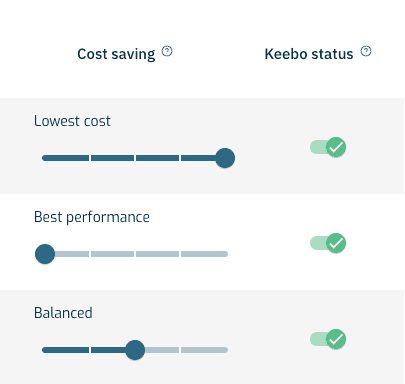
Every team draws the line between cost and speed differently. A finance warehouse handling end-of-quarter results and an ad hoc analyst sandbox should not be optimized with the same aggressiveness.
The optimization slider sets that aggressiveness per warehouse. It has five positions:
- Best Performance
- Good Performance
- Balanced
- Low Cost
- Lowest Cost
Move the slider left and the artificial intelligence (AI) engine learns immediately and self-corrects. There is no retraining period and no waiting for the next cycle. You get a graceful trade-off between savings and performance, with the smallest possible hit to savings.
How to Set It
Start at Balanced. Watch for a week.
If no performance issues appear, move one position to Low Cost. Watch again. If performance still holds, move to Lowest Cost.
If latency or query execution times become unacceptable at any point, move the slider back toward better performance. The change takes effect right away.
Most teams find their setting in two or three steps. Once you find it, the slider rarely moves again.
Layer 3: Performance Guardrails
Good performance is not a universal number. A 90 second query is fine in a nightly pipeline and unacceptable in a customer-facing dashboard. So Keebo does not define your SLA. You do.
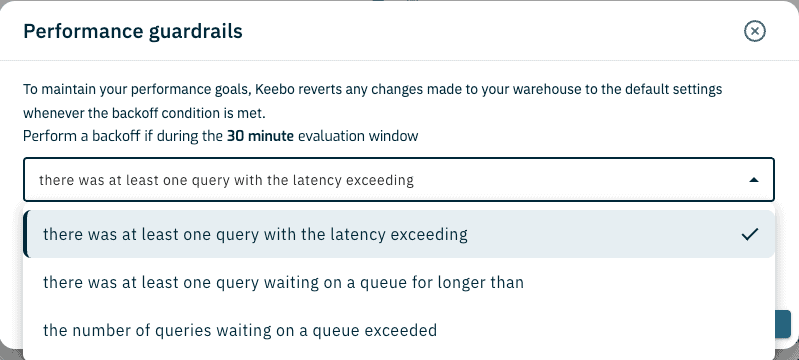
Keebo Warehouse Optimization reverts a warehouse to its default settings whenever a guardrail is breached. We call this a backoff. It is automatic, and it happens without anyone filing a ticket.
Three backoff criteria are available.
Query latency. Triggers a backoff if any single query exceeds your latency threshold during the evaluation window. Choose this if your users judge the warehouse by how long a query takes to return.
Query queuing time. Triggers a backoff if any single query waits in a queue longer than your threshold. Choose this if wait time is the complaint you hear most.
Number of queued queries. Triggers a backoff if the count of waiting queries exceeds your threshold at any point during the evaluation window. Choose this if queue depth is what breaks your workload.
The thresholds are yours to set. So is the evaluation window. Two warehouses in the same account can run entirely different definitions of acceptable. Click the edit button on the Settings page to change them.
Layer 4: Custom Schedules and Rules
Some workloads are predictable. A Sunday night ETL job consolidates a week of sales data. A Tuesday board report hits the same warehouse at the same hour. Weekend query volume drops to nearly nothing.
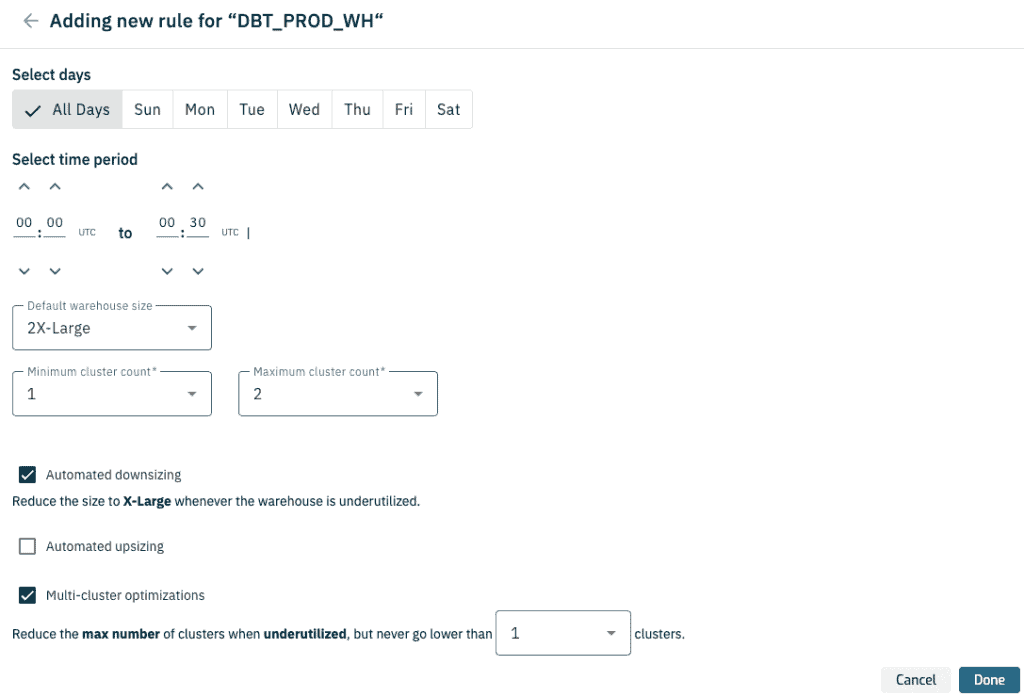
Custom rules let you define days and times when a warehouse should operate with different defaults. If weekend demand is light, for example, you can set the warehouse to Small every Saturday and Sunday. Keebo then treats Small as the new starting point and continues optimizing from there. You are not turning optimization off. You are giving it a better baseline.
The same works in reverse. For a window when your heaviest pipeline runs, you can set a larger warehouse size or raise the cluster ceiling. Keebo optimizes within those parameters to support the increased workload. When the window closes, the warehouse returns to its standard defaults.
Custom rules give you control over how Keebo operates during predictable workload patterns. You can adjust warehouse size, set minimum and maximum cluster counts, and enable or disable specific optimization algorithms for a scheduled window. Keebo handles the changes automatically, then returns to its default settings when the schedule ends.
Layer 5: Change Detection
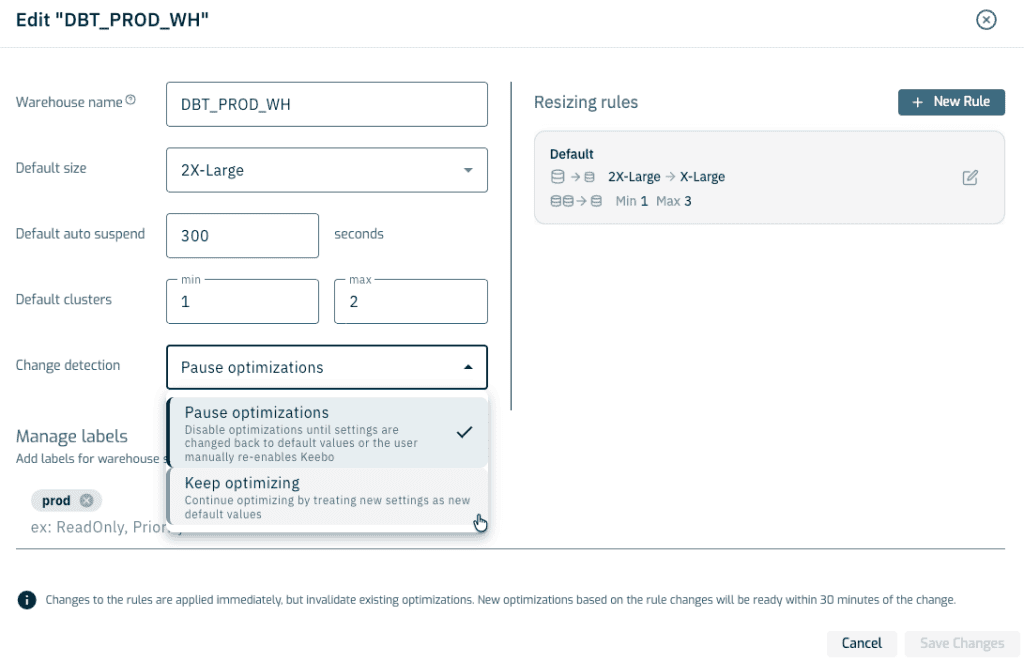
Rules only hold if the warehouse stays where you put it. Someone resizes a warehouse by hand during an incident. A Terraform run overwrites an auto-suspend value. The configuration you tuned is no longer the configuration you have.
Warehouse Optimization automatically detects changes to an onboarded warehouse’s size, auto-suspend, and minimum and maximum cluster values when those changes happen outside Keebo.
By default, optimization continues after a change is detected. You can set change detection to pause optimizations on that warehouse instead.
We recommend “Keep Optimizing” for most warehouses, because it captures the most savings.
Why Layers Instead of a Single Setting
A single aggressiveness dial forces one answer for every failure mode. Layers do not.
Per-warehouse controls handle the workloads where you want a hard floor. Sliders handle your general appetite for risk. Guardrails handle what you cannot predict. Schedules handle what you can. Change detection handles the drift that undoes all four.
Each layer catches something the others miss. Together they mean cost optimization does not have to be a gamble.
Improving Performance: Condition-Based Upsizing
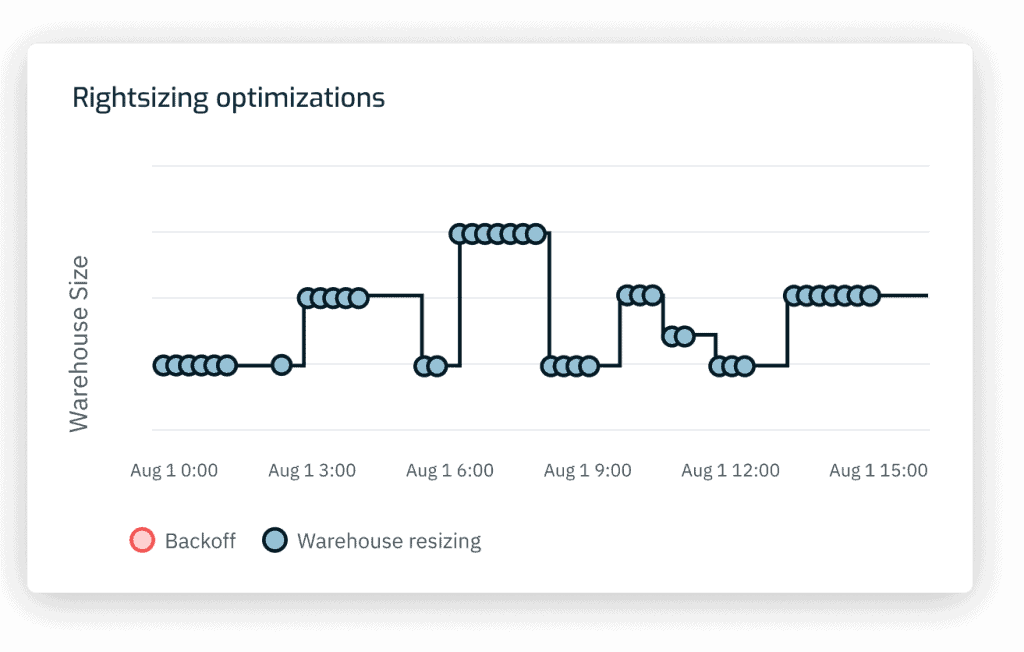
The five layers above keep optimization from costing you performance. Conditional upsizing goes the other way. It uses the same machinery to make performance better than your default.
You write rules that increase a warehouse’s size when performance criteria are met. The criteria are the same ones available for backoffs, so the logic you already trust for protection also works for scaling.
A rule might upsize a warehouse whenever average query latency passes 100 seconds. During each optimization cycle, Keebo evaluates your rules and upsizes when the condition holds, up to a ceiling you set. When the spike passes and the condition clears, Keebo scales back down, either one level at a time or straight to your default, depending on your preference.
The result is a warehouse sized for its normal day, not for its worst hour. You stop paying for headroom you use twice a month.
Cost and Performance Are One Problem
Treating cost and performance as a trade-off assumes both are fixed. Neither is.
Keebo gives data teams the confidence to innovate without limits through agentic optimization. Our patented Data Learning technology analyzes your production workloads continuously and adjusts warehouse configuration in real time, balancing performance, usage, and spend as your workloads move.
Keebo Warehouse Optimization holds each warehouse at the lowest cost your performance targets allow, and the five layers above make sure those targets are yours to define.
Data Warehouse Performance FAQs
How Fast Does a Slider Change Take Effect?
Immediately. The AI engine learns from the new setting and self-corrects on the next optimization cycle.
What Happens When Keebo Violates an SLA?
Keebo Warehouse Optimization reverts the warehouse to its default settings. The backoff is automatic and applies to the warehouse that breached the threshold.
Do Custom Rules Turn Optimization Off During Their Window?
No. The rule sets a new default for that window, and Keebo continues optimizing from it.