Keebo Product Update: December 2023

The Keebo engineering team continuously ships new features and improvements. Our latest Snowflake optimization update adds security, privacy, and fine-grained control. Here are the highlights:
Support for AWS PrivateLink
If your organization requires no public internet traffic, we have good news. Keebo now supports AWS PrivateLink so you can connect us to your Snowflake warehouses without any data leaving your private network. AWS PrivateLink connects your VPC to services, including Keebo, as if they run inside your VPC. You control which endpoints and services your VPC can access.
PrivateLink requires setup steps before provisioning Keebo. We provide guidance during setup or via your account manager. Once ready, enter the endpoint in the Keebo portal advanced settings.
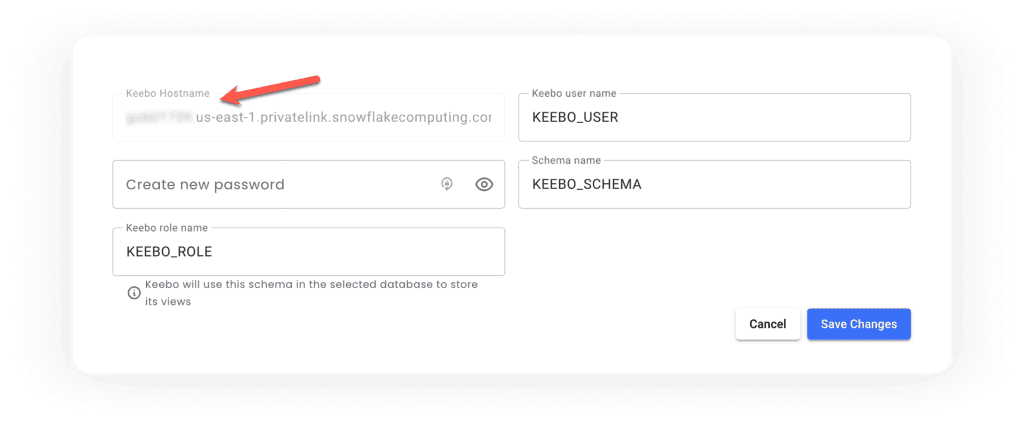
Keebo uses a Snowflake user, role, and schema for analysis and optimization. These credentials access only usage metadata, not user or business data.
Controlling Change Detection
When a user changes a warehouse parameter, Keebo pauses optimizations. This prevents conflicting changes that can impact performance and frustrate teams.
Customers wanted more control, so we added configurable change detection. This enables a more hands-off approach, especially across many warehouses. In large environments, missed changes can delay optimization and reduce savings.
When you go to the edit button of a warehouse in the Keebo portal, you’ll notice these new settings:
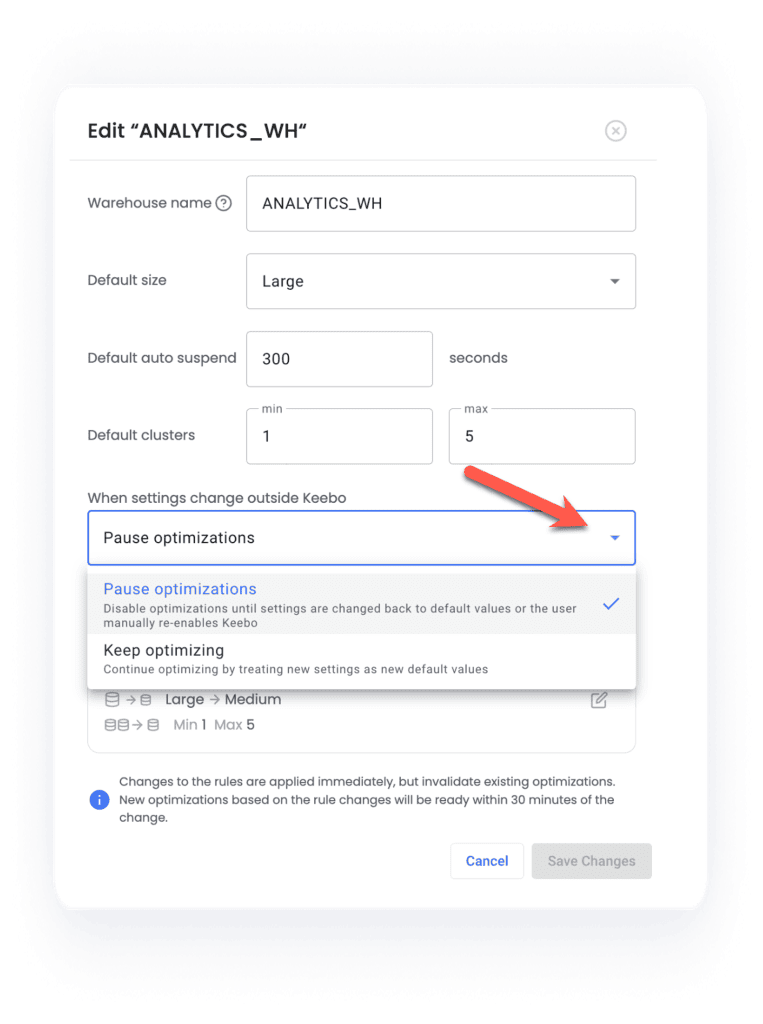
You have two options:
- Pause optimizations. This is the default behavior. Like with previous versions of Keebo, we will pause optimizations when a change is made. However, we will now auto-resume if the warehouse is set back to the default settings. Or, like before, we will resume once you re-enable Keebo for that warehouse.
- Keep optimizing. In this case, we will make the latest changes the new default settings and then keep optimizing.
Example: a user changes warehouse size from large to medium.
- With “pause,” Keebo stops optimizing until you re-enable or revert the change.
- With a setting of “keep optimizing” Keebo will make medium the new default size and keep going.
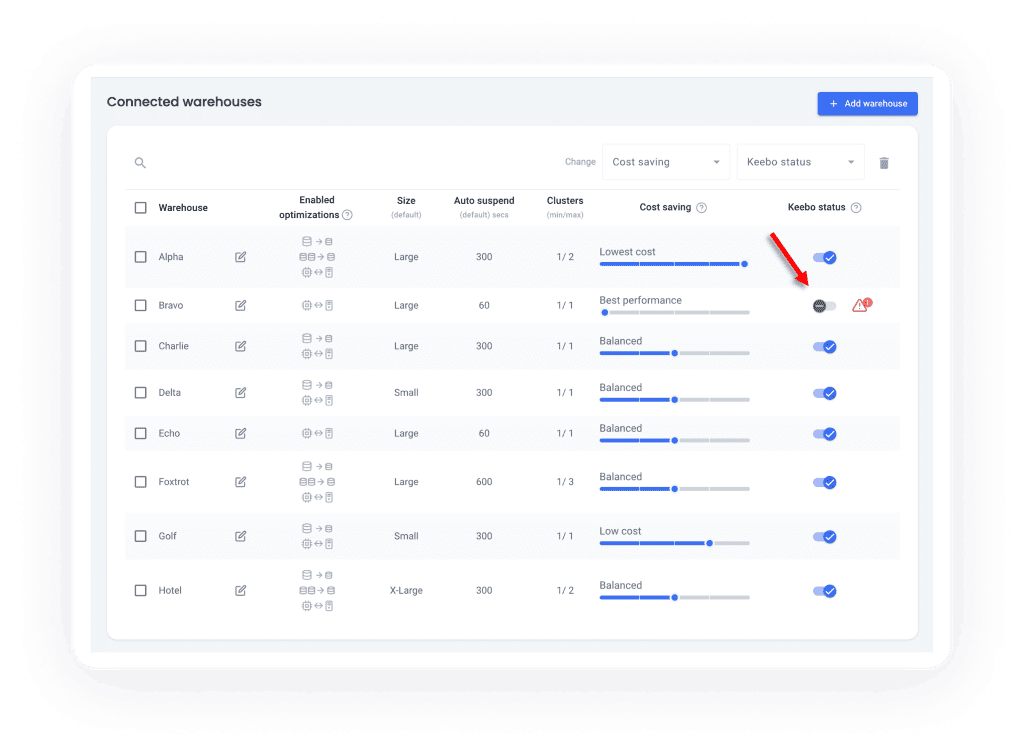
As a reminder, you can re-enable a Keebo warehouse in the settings screen of the portal. In this screenshot you can see that the “Bravo” warehouse is disabled but it can be re-enabled with a simple flick of a switch:
Also remember that Keebo will email you whenever Keebo is disabled by change detection. If you’d like to manage this, go to your Keebo user account by clicking your account name/icon in the upper right corner and then choosing “My Account.” You can then control how often you get notifications about all kinds of Keebo operations, including “external warehouse changes” which is what we are discussing here:
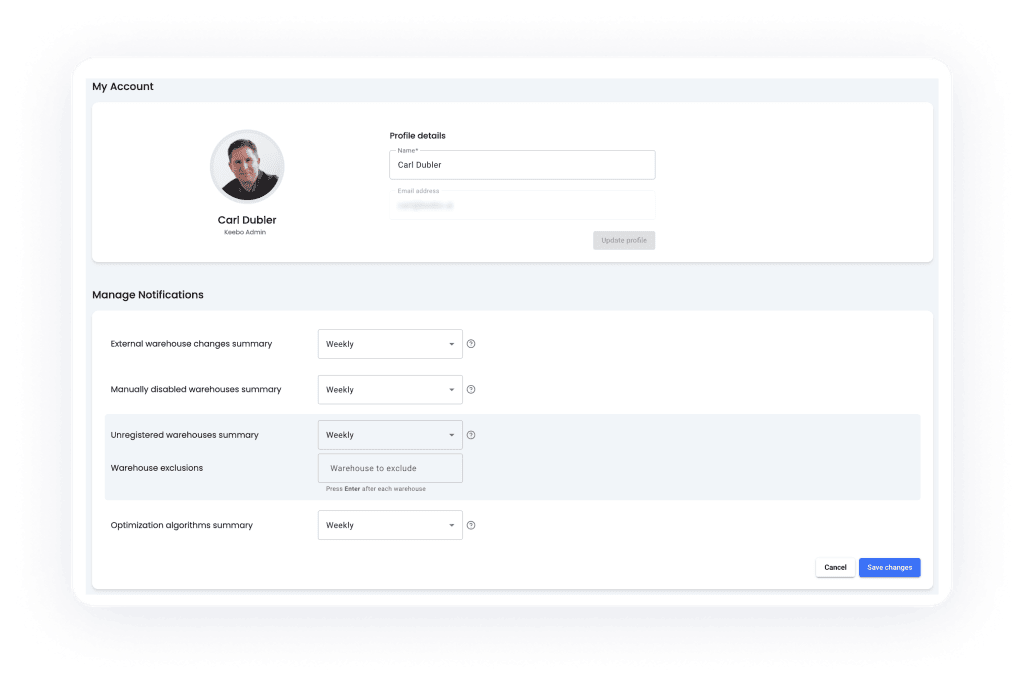
If you haven’t visited these email settings before, you should do so now. You can get informative reports on optimizations as well as notifications to make sure you aren’t leaving any money on the table by being unaware of warehouses that aren’t being optimized.
Thanks for a Great Year!
We hope you’ve enjoyed using Keebo in 2023 and seeing big savings with our fully automated Snowflake optimizations. We wish you a prosperous new year in 2024! Look for more new features and products from us in the months ahead.